Desktop apps
Desktop app · macOS and WindowsVersion 0.1.1
Studio
Look your best in every call app, and record polished screen videos with your camera in a bubble.
- macOS: macOS 12.3 or later · Apple Silicon and Intel · version 0.1.1 · 26 MB
- Windows: Windows 10 or 11 · 64-bit · version 0.1.1 · 12 MB
- Free, no paid version
- No account
- Your camera picture and your recordings stay on your computer. Nothing is uploaded.
What it does
- Works in every call app
- Pick Omnibus Camera in Zoom, Google Meet, Teams, Slack or anything else that uses a camera, and they all get your Studio picture.
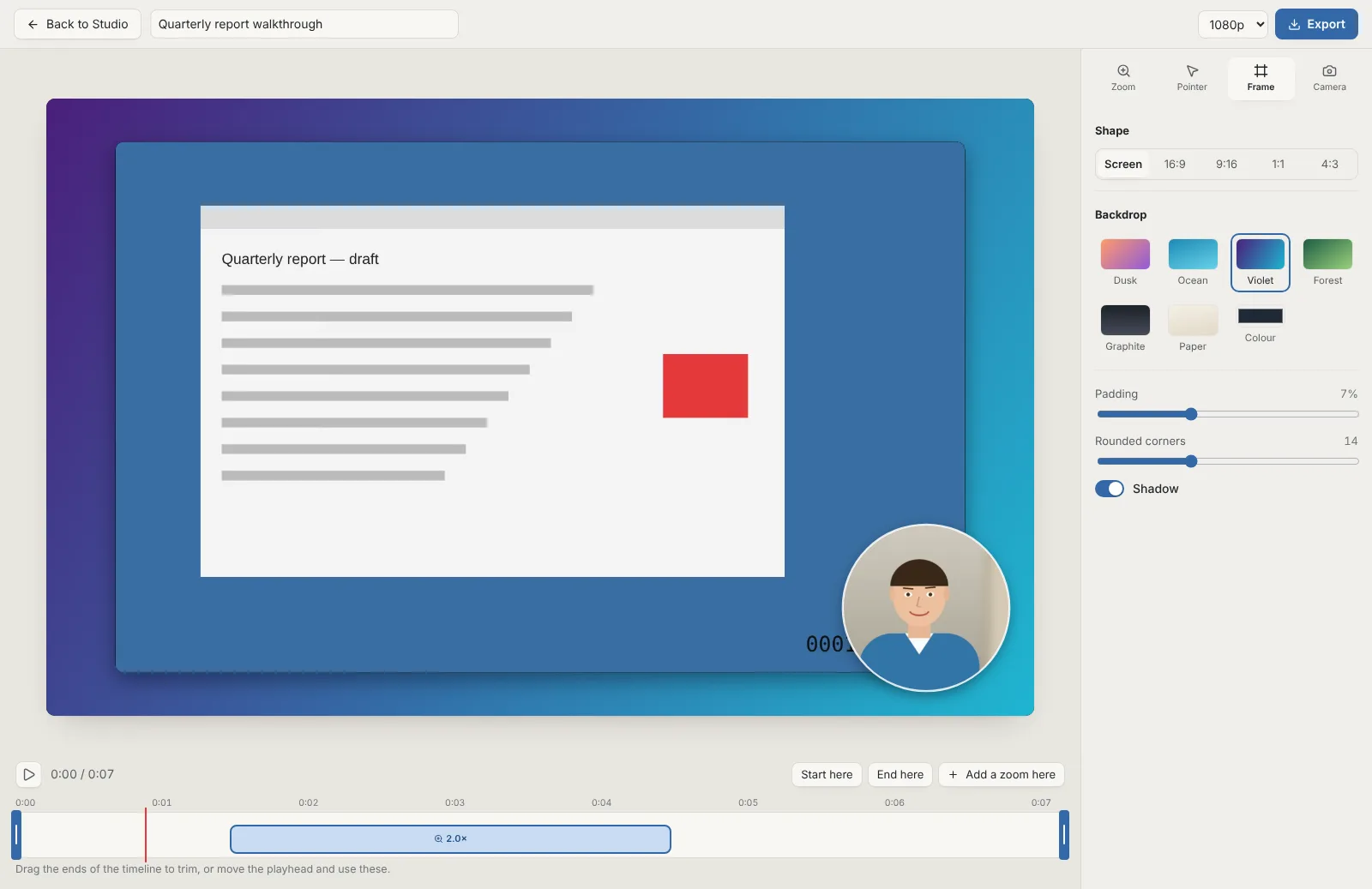
- Screen recordings that zoom where you click
- Record your screen with your camera in a bubble. Studio zooms in on each burst of clicks and follows the pointer, draws a smooth pointer with click ripples, and sets it all on a backdrop. Trim, change any zoom, pick a shape for any platform, and export an MP4 with no watermark.
- Blur or replace your background
- A soft blur that keeps you sharp, a built-in room, your own picture or a plain colour, with clean edges around your hair and shoulders.
- Better light, automatically
- Studio brightens your face in a dim room without blowing out the highlights. Fine-tune brightness, contrast, colour and warmth, or soften skin.
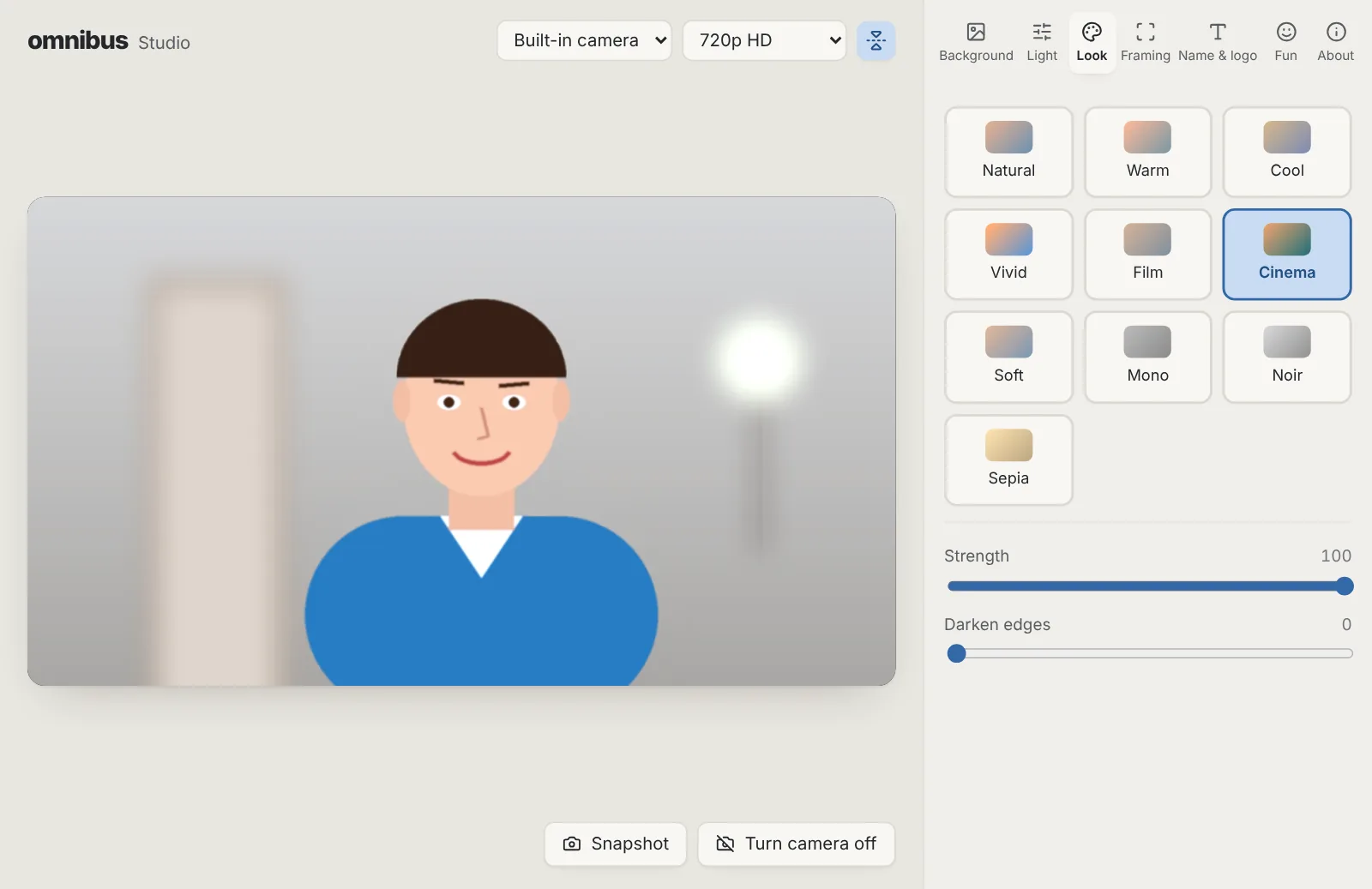
- Looks
- Warm, cool, vivid, film, cinema, mono and more, at any strength, plus a gentle vignette.
- Stay in frame
- Keep me in the middle follows you slowly as you move, like Center Stage, with any webcam. Or set your own zoom.
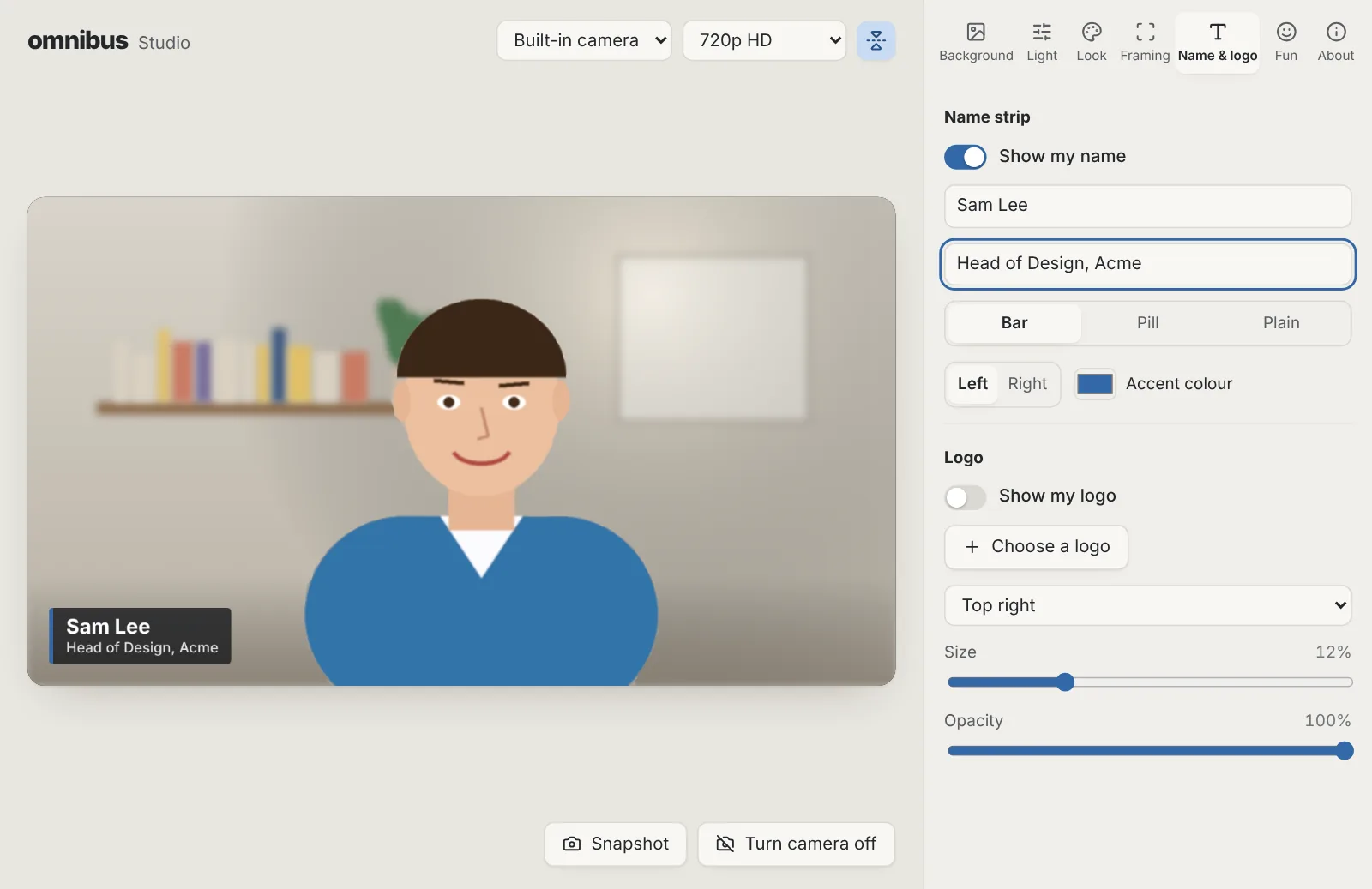
- Your name and logo
- A clean name strip with your role, in three styles, and your logo in any corner.
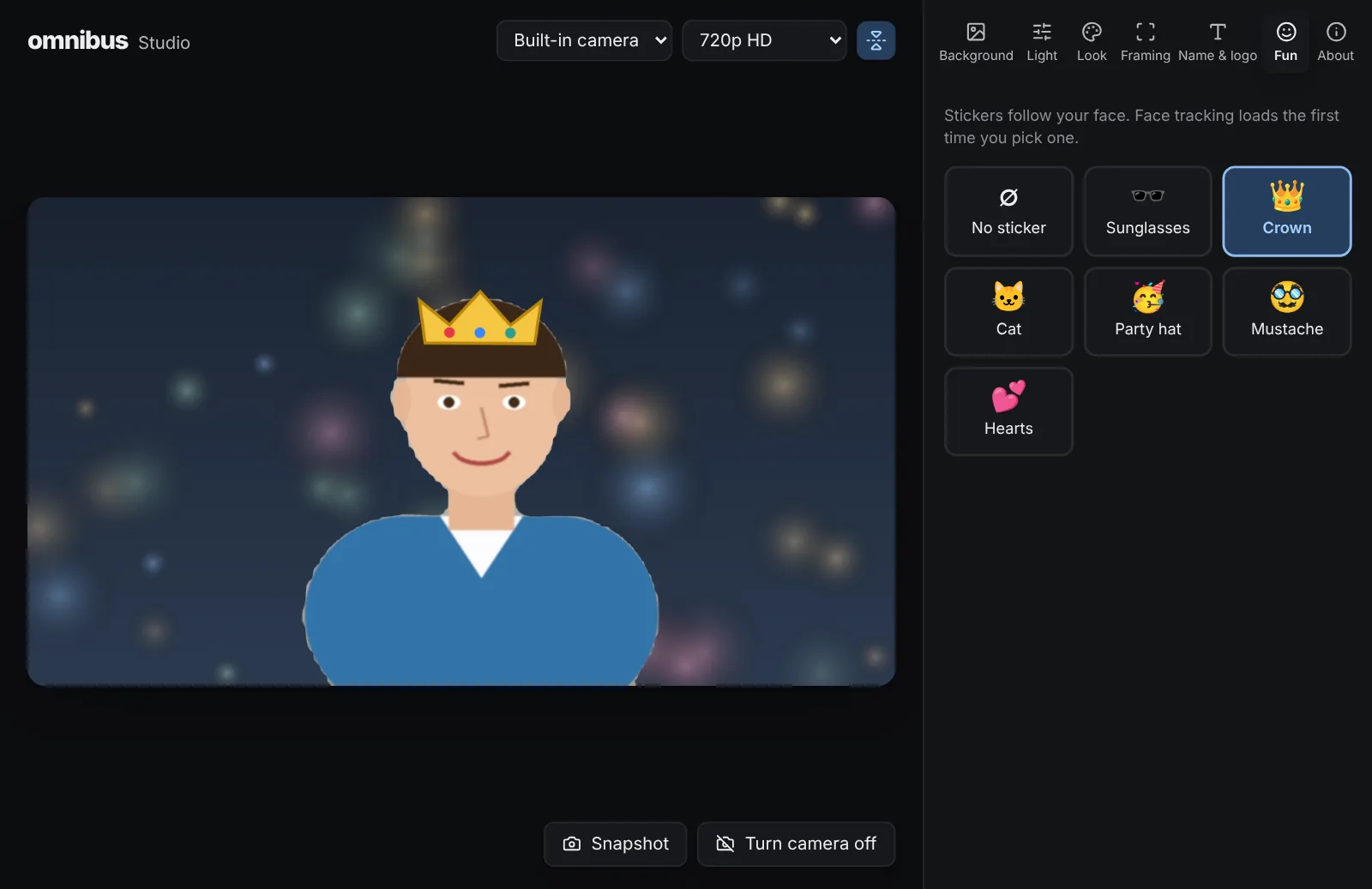
- Face stickers
- Sunglasses, a crown, cat ears, a party hat and more that follow your face. Free, as Snap Camera used to be.
Installing it
macOS
- Open the downloaded .dmg file.
- Drag Studio into the Applications folder.
- Open Studio from Applications. macOS says it can't check the app: click Done, then go to System Settings › Privacy & Security, scroll down and click Open Anyway.
Windows
- Run the downloaded -setup.exe file.
- Windows shows a blue “Windows protected your PC” notice because the app is new and not yet signed: click More info, then Run anyway.
- Follow the installer. It installs for your account only, so it doesn't ask for an administrator password.
Studio questions
- Is it really free?
- Yes. No trial, no subscription, no account and no watermark on your picture. It is part of omnibus.tools, which keeps every tool free.
- Does it work in Slack, Zoom, Meet and Teams?
- Yes. Studio adds a camera called Omnibus Camera that any call app can pick, showing exactly what you see in Studio. It needs Windows 11 or macOS 12.3 or later. Windows asks for administrator permission once to install it; macOS asks you to allow it once in System Settings.
- How does the screen recorder work?
- Pick a whole screen and record. Studio steps out of the way (it's left out of the recording) and a small bar at the top of the screen shows the time and Stop. It follows where the pointer is and when you click, never what you type, and uses that to zoom in and draw a smooth pointer. Afterwards you can trim, add or change zooms, move the camera bubble and choose a backdrop, then export an MP4 up to 4K. Recordings stay on your computer.
- Is my camera sent anywhere?
- Not by Studio. Every effect runs on your computer, and Omnibus Camera gives the picture only to the call app you choose. What that call app does with it is up to the call.
- Do I need a powerful computer?
- No. The effects run on your computer's graphics, which almost every Mac and PC from the last several years has. If yours is slow, choose 360p or turn off skin softening.
- Why use this instead of the effects built into my computer?
- Built-in effects differ by system and model: Windows Studio Effects only works on newer AI PCs, and neither Mac nor Windows offers your own background pictures, name strips, logos or face stickers everywhere. Studio gives you all of them on any Mac or PC.
More apps
Storage Cleaner: Free up space on your Mac or PC, and see everything before anything goes.Phone Mirror: See your Android phone on your computer and use it with your mouse and keyboard.Focus: See which apps and websites take your time, and keep the distracting ones away.Beam: Send photos, files and text between your phones, tablets and computers over Wi-Fi, every way.Radio: Endless music made live on your computer: calm focus music, a live band and psytrance, with a visualizer.