Desktop apps
Desktop app · macOS and WindowsVersion 0.1.1
Phone Mirror
See your Android phone on your computer and use it with your mouse and keyboard.
- macOS: macOS 11 or later · Apple Silicon and Intel · version 0.1.1 · 6 MB
- Windows: Windows 10 or 11 · 64-bit · version 0.1.1 · 2 MB
- Free, no paid version
- No account
- The picture and your clicks go straight between the phone and this computer, by USB cable or your own Wi-Fi. Nothing is uploaded.
What it does
- Use your phone from your computer
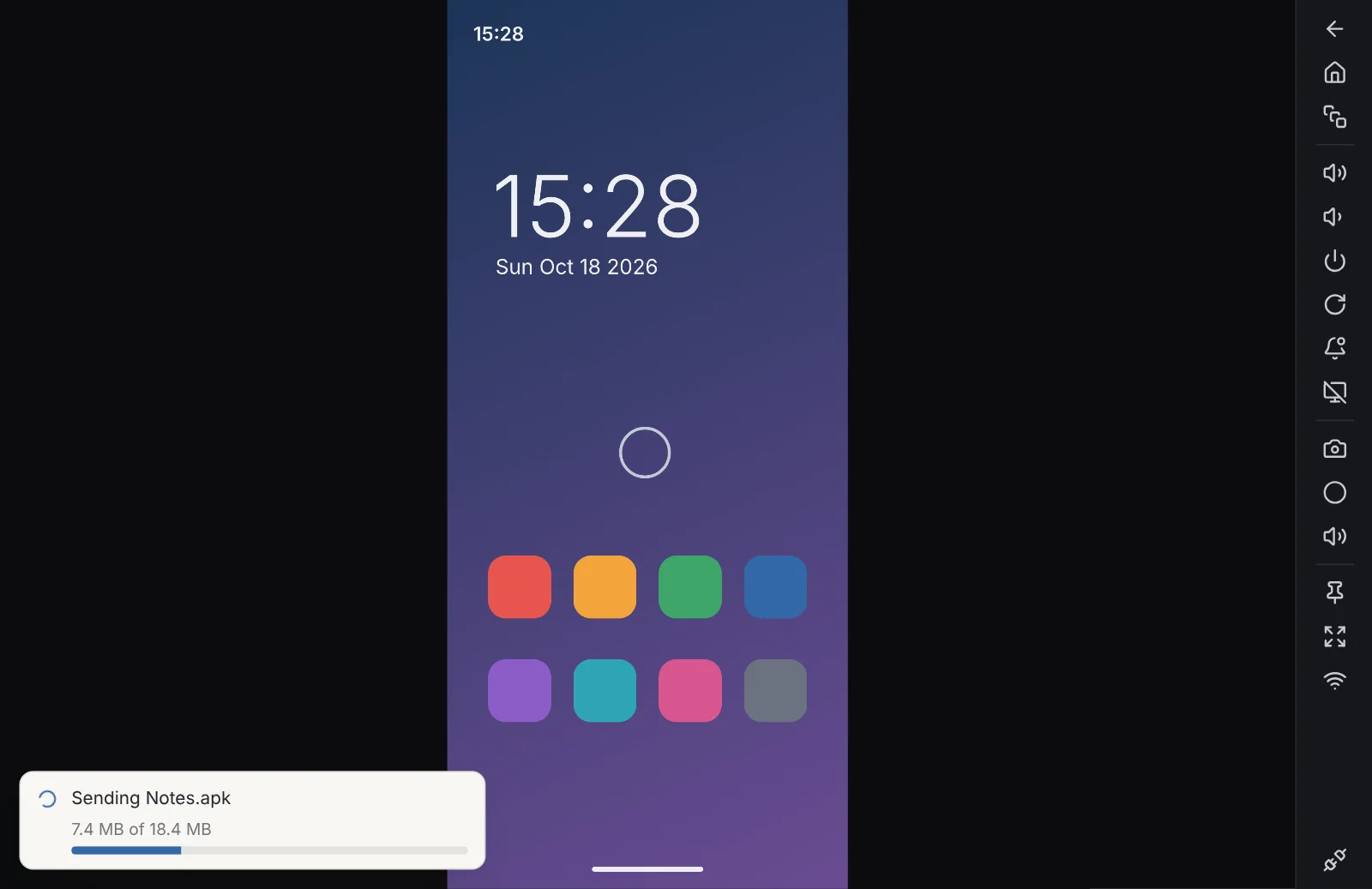
- Click to tap, scroll with the mouse or trackpad, and type with your keyboard in any language. Back, Home, Recent apps, volume and power are one click away.
- Free, with no time limits
- No trial, no paid tier and no account. Full quality, full screen and Wi-Fi are all included.
- USB or Wi-Fi
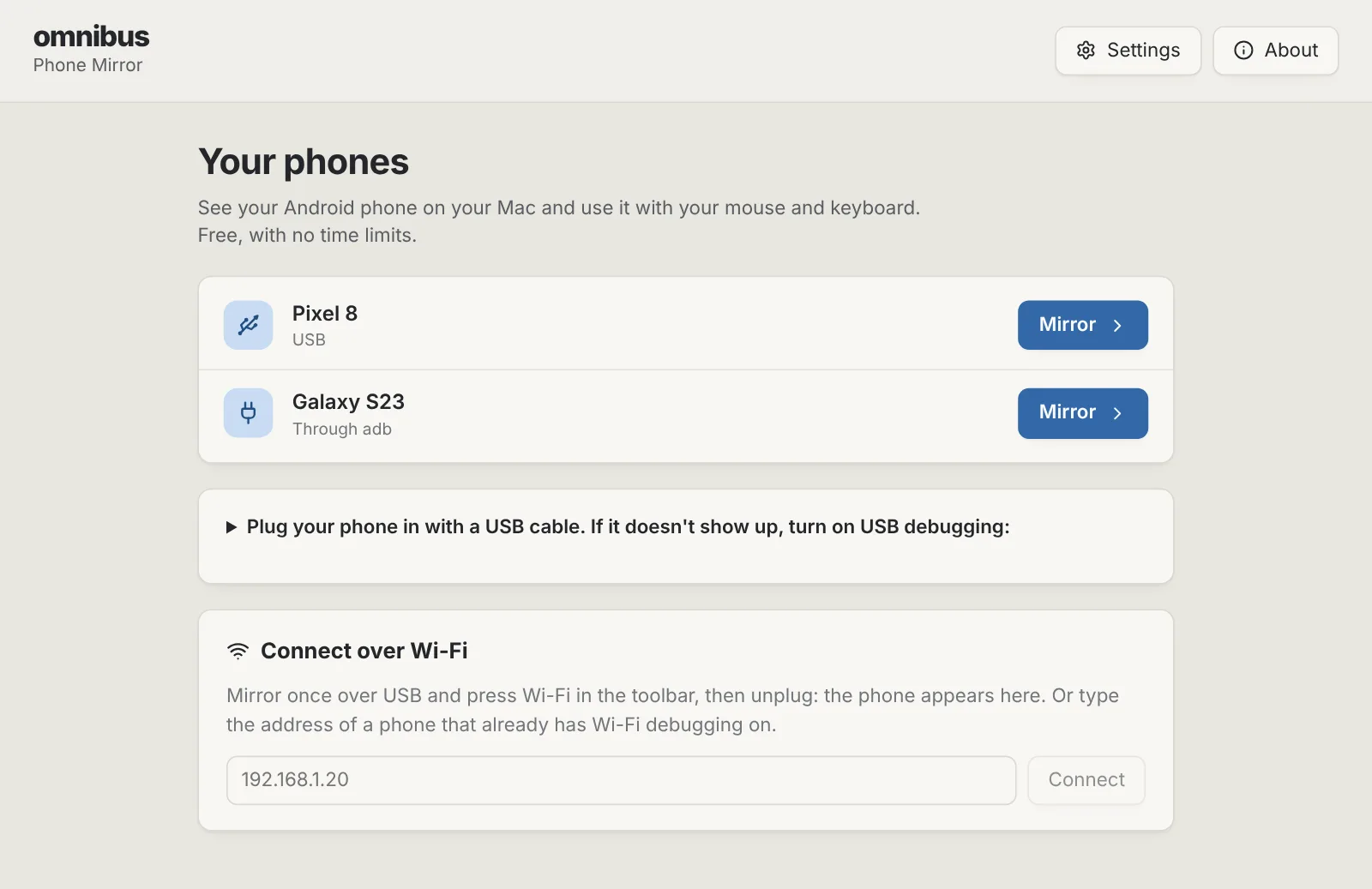
- Plug in and mirror. Then press Wi-Fi to carry on without the cable, as long as both are on the same network.
- The phone's sound and clipboard
- Hear the phone on your computer (Android 11 and later). Paste text into the phone, and anything you copy on the phone lands on your computer's clipboard.
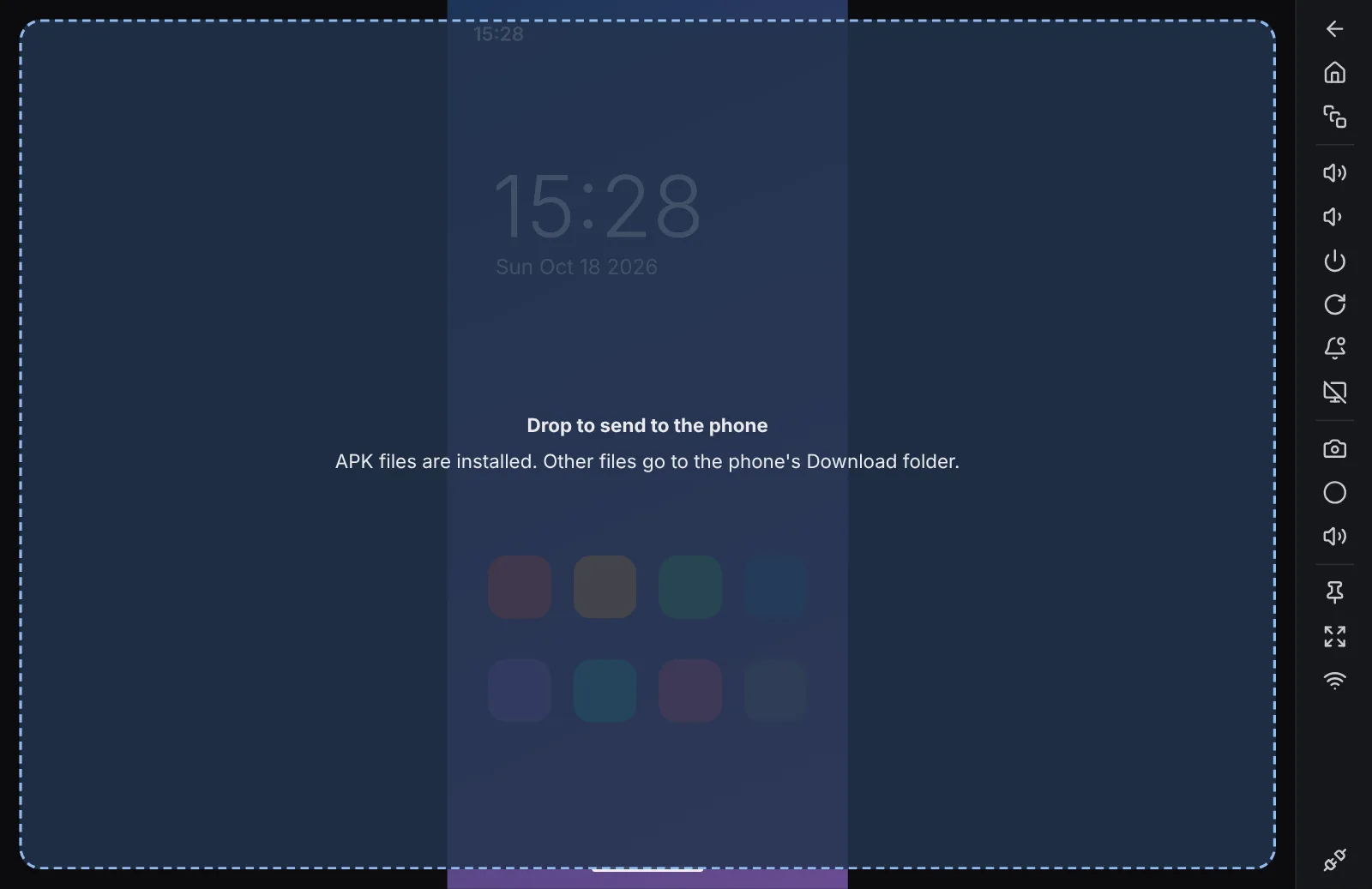
- Drop files on the window
- Drop an APK to install it, or any other file to put it in the phone's Download folder.
- Screenshots and recordings
- Save a screenshot or record the screen with sound, straight to your computer. Keep the window on top, or go full screen.
Installing it
macOS
- Open the downloaded .dmg file.
- Drag Phone Mirror into the Applications folder.
- Open Phone Mirror from Applications. macOS says it can't check the app: click Done, then go to System Settings › Privacy & Security, scroll down and click Open Anyway.
Windows
- Run the downloaded -setup.exe file.
- Windows shows a blue “Windows protected your PC” notice because the app is new and not yet signed: click More info, then Run anyway.
- Follow the installer. It installs for your account only, so it doesn't ask for an administrator password.
Phone Mirror questions
- Is it really free?
- Yes. No trial, no paid version, no account and no time limits. It is part of omnibus.tools, which keeps every tool free.
- What does my phone need?
- Android 5 or later with USB debugging turned on (Settings › About phone › tap Build number seven times, then Developer options › USB debugging). The phone's sound comes through on Android 11 and later.
- Do I need to install anything on the phone?
- No app to install. While the mirror is open, Phone Mirror runs a small helper on the phone, and it stops when you disconnect.
- Does it send my screen anywhere?
- No. The picture goes straight from the phone to this computer, over the USB cable or your own Wi-Fi.
- My phone charges but doesn't show up. What now?
- Check that USB debugging is on and tap Allow on the phone when it asks. Some cables only charge, so try another. On Windows, some phones (often Samsung) need the Google USB Driver before an app can use them; if adb from Android Studio works, Phone Mirror goes through it automatically.
- How do I use it over Wi-Fi?
- Mirror the phone once over USB and press the Wi-Fi button in the toolbar. You can then unplug the cable. Both need to be on the same network, and Wi-Fi debugging switches off when the phone restarts, so plug it in once more after a restart.
- Is it like Vysor or scrcpy?
- It does the same job, in a simple window with a phone list, Wi-Fi switching, file drops and recording, and none of it is held back behind a paid plan.
More apps
Storage Cleaner: Free up space on your Mac or PC, and see everything before anything goes.Focus: See which apps and websites take your time, and keep the distracting ones away.Studio: Look your best in every call app, and record polished screen videos with your camera in a bubble.Beam: Send photos, files and text between your phones, tablets and computers over Wi-Fi, every way.Radio: Endless music made live on your computer: calm focus music, a live band and psytrance, with a visualizer.