Desktop apps
Desktop app · macOS and WindowsVersion 0.1.1
Focus
See which apps and websites take your time, and keep the distracting ones away.
- macOS: macOS 11 or later · Apple Silicon and Intel · version 0.1.1 · 5 MB
- Windows: Windows 10 or 11 · 64-bit · version 0.1.1 · 2 MB
- Free, no paid version
- No account
- Everything it records stays on your computer and is never sent anywhere.
What it does
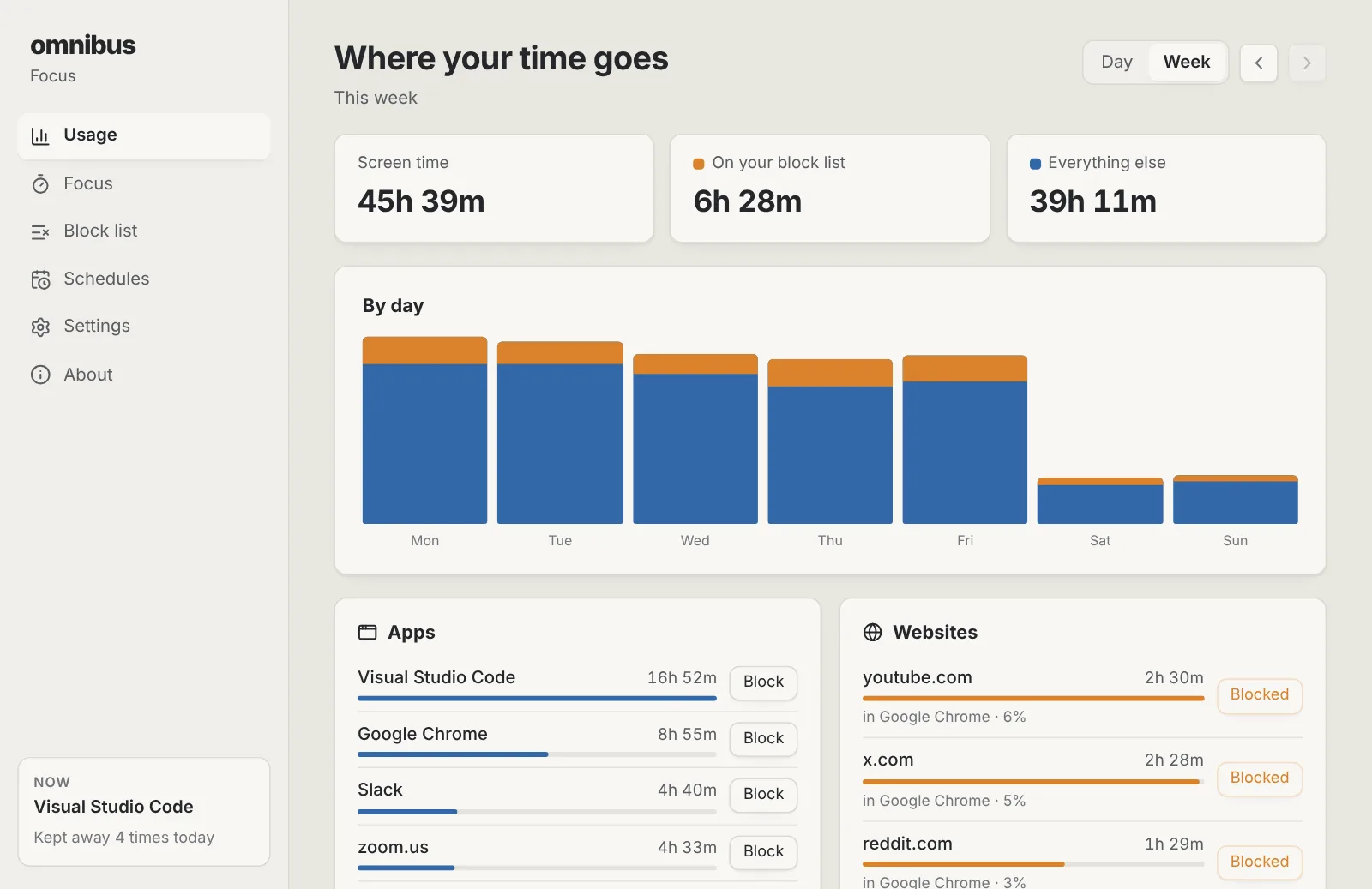
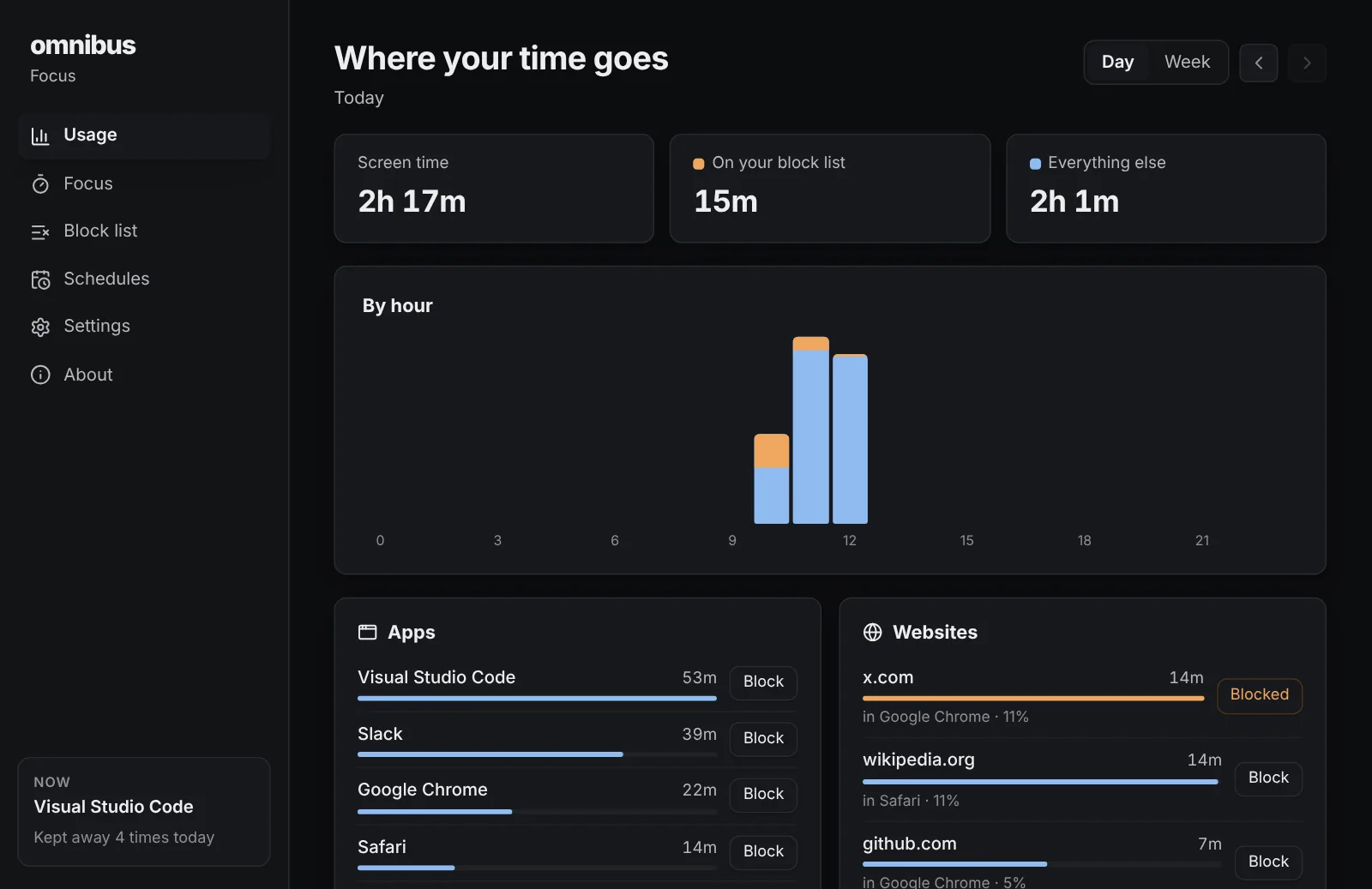
- See where your time goes
- Time per app and per website, today or this week, hour by hour. Time away from the keyboard and mouse isn't counted.
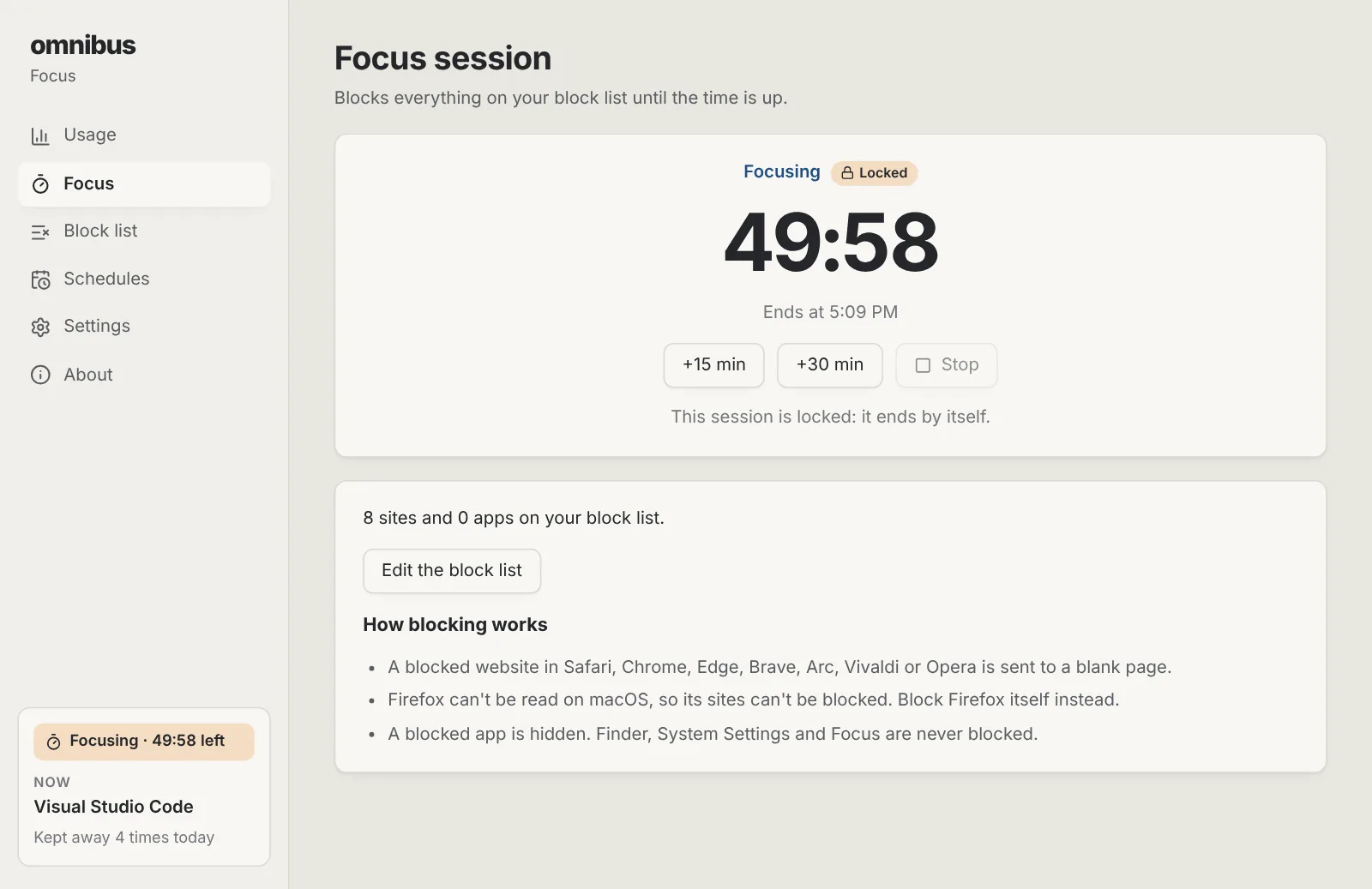
- Block distractions while you work
- Start a 25, 50 or 90-minute focus session, or your own length. Blocked websites are closed and blocked apps are hidden, with a reminder to get back to work.
- Schedules
- Block your list at set times every week, like weekday mornings, without starting anything.
- Lock a session when you need to
- A locked session can't be stopped early, and nothing can come off the block list until it ends.
- Private by design
- Only website names are kept (youtube.com), never pages, titles or anything you type. Everything stays on your computer, and you can export or delete it any time.
- Free, with no limits
- No subscription and no account. Unlimited block lists, schedules and history.
Installing it
macOS
- Open the downloaded .dmg file.
- Drag Focus into the Applications folder.
- Open Focus from Applications. macOS says it can't check the app: click Done, then go to System Settings › Privacy & Security, scroll down and click Open Anyway.
Windows
- Run the downloaded -setup.exe file.
- Windows shows a blue “Windows protected your PC” notice because the app is new and not yet signed: click More info, then Run anyway.
- Follow the installer. It installs for your account only, so it doesn't ask for an administrator password.
Focus questions
- Is it really free?
- Yes. No trial, no subscription, no account and no limits on block lists or history. It is part of omnibus.tools, which keeps every tool free.
- What does it record?
- Every two seconds, the app in front and, in a browser, the website's name (like youtube.com). Not the page, its title, what you type or anything on the screen. You can turn website recording off, pause recording, export your history as a spreadsheet file or delete it.
- Is my data sent anywhere?
- No. Your history stays on your computer and never leaves it.
- Which browsers can it see and block?
- On a Mac: Safari, Chrome, Edge, Brave, Arc, Vivaldi and Opera. macOS asks once per browser whether Focus may control it; allow it. Firefox can't be read on a Mac, so block Firefox itself instead. On Windows: Chrome, Edge, Brave, Vivaldi, Opera and Firefox.
- How does blocking work?
- During a focus session or schedule, a blocked website's tab is sent to a blank page on a Mac (on Windows the browser is minimised), and a blocked app is hidden. A small Back to work window comes up. Finder, Explorer, settings and Focus itself are never blocked.
- Can I get round a block?
- Focus is a nudge, not a lock on your computer: it needs no admin rights and changes nothing in the system. A locked session can't be stopped early or emptied, and Focus won't quit while one runs, which is usually enough to keep you honest.
- Does it work when the window is closed?
- Yes. Closing the window keeps Focus running in the menu bar or system tray, where you can also start a session. It can start when you log in, so schedules keep working.
More apps
Storage Cleaner: Free up space on your Mac or PC, and see everything before anything goes.Phone Mirror: See your Android phone on your computer and use it with your mouse and keyboard.Studio: Look your best in every call app, and record polished screen videos with your camera in a bubble.Beam: Send photos, files and text between your phones, tablets and computers over Wi-Fi, every way.Radio: Endless music made live on your computer: calm focus music, a live band and psytrance, with a visualizer.