Desktop apps
Desktop app · macOS and WindowsVersion 0.2.0
Beam
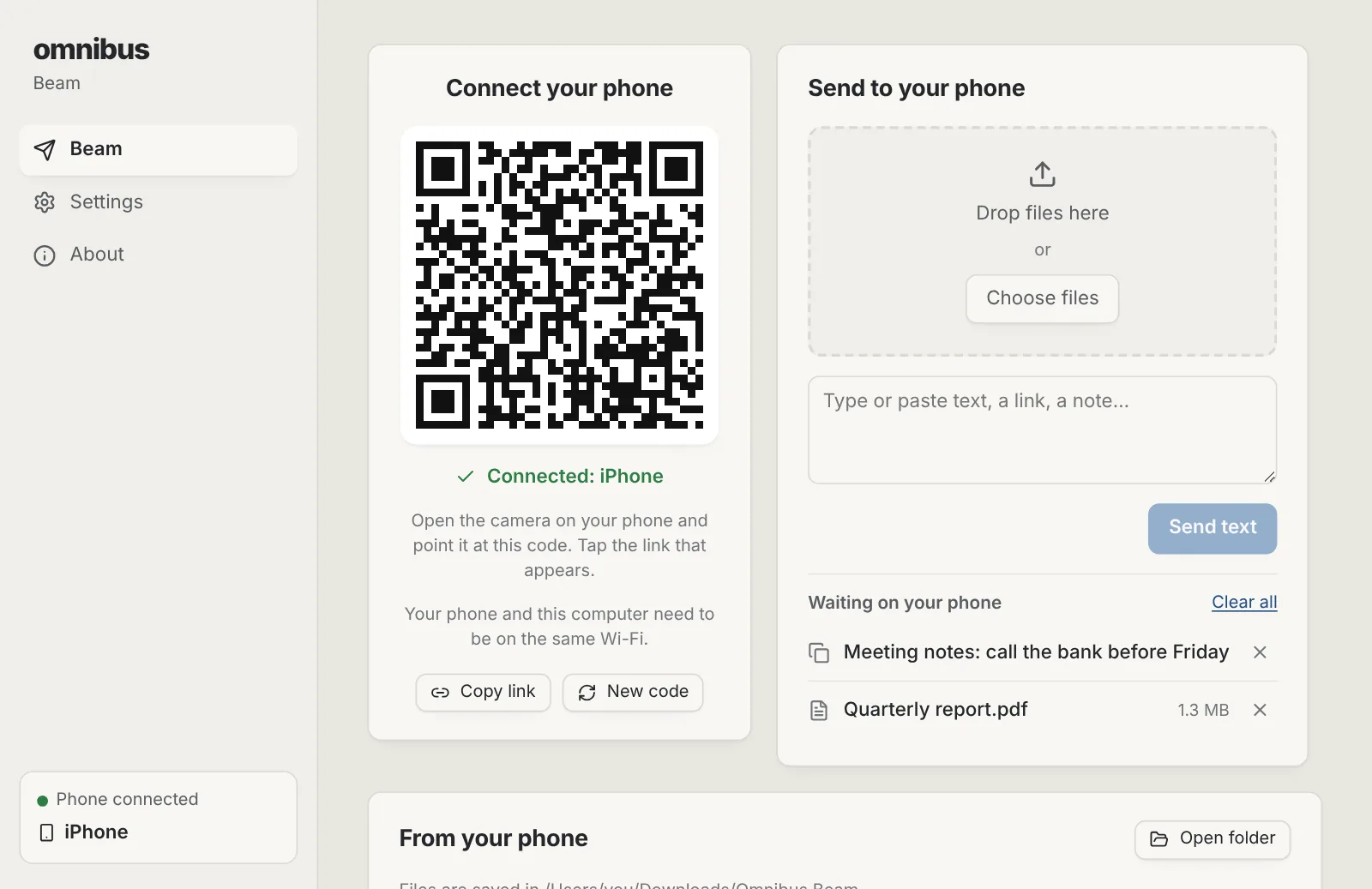
Send photos, files and text between your phones, tablets and computers over Wi-Fi, every way.
- macOS: macOS 11 or later · Apple Silicon and Intel · version 0.2.0 · 6 MB
- Windows: Windows 10 or 11 · 64-bit · version 0.2.0 · 2 MB
- Free, no paid version
- No account
- Files and text go straight between your devices over your own Wi-Fi, encrypted. Nothing is uploaded.
What it does
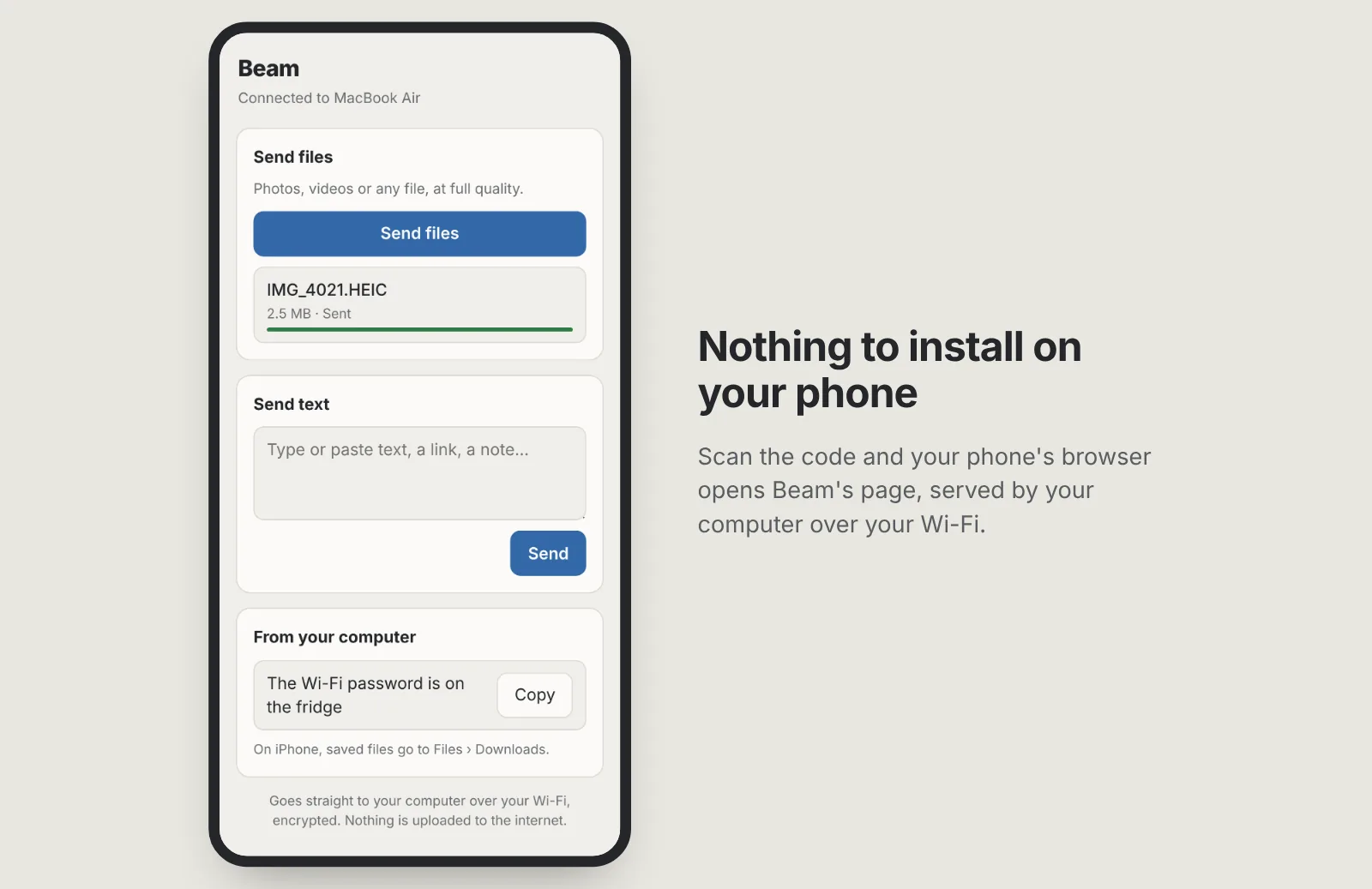
- Nothing to install on the phone
- Scan the QR code with your phone's camera and its browser opens Beam. iPhone or Android, any recent browser.
- Both ways
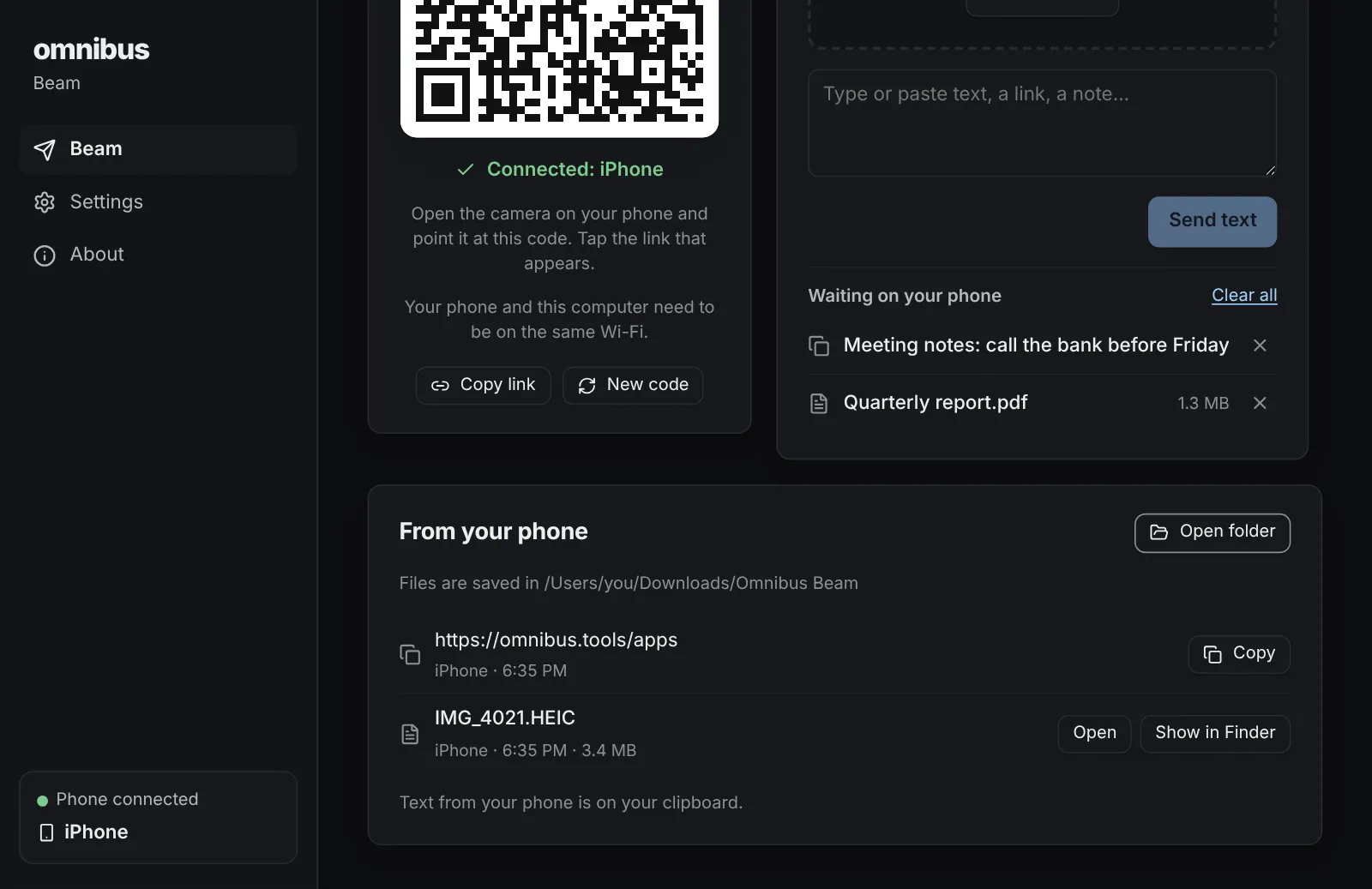
- Send photos and videos from your phone to your computer, and files from your computer to your phone: drop them on the window and tap Save on the phone.
- Computer to computer
- Computers with Beam open on the same Wi-Fi find each other. Connect once, then send files and text either way, Mac or PC.
- Any device with a browser
- No camera to scan the code? Type the short address Beam shows into any browser on a laptop or tablet, and accept it on your computer.
- Full quality, any size
- Files arrive exactly as they were, at the speed of your Wi-Fi, with no size limit and no compression.
- Text and clipboard
- Send a link or a note from your phone and it lands on your computer's clipboard, ready to paste. Text you copy on the computer can go to the phone too, if you turn it on.
- Private and encrypted
- Everything stays on your local network and is encrypted. Only a phone that scanned your code, or a device you accepted with a matching code, can connect.
- Free, with no limits
- No subscription, no account, no limits on how much or how often you send.
Installing it
macOS
- Open the downloaded .dmg file.
- Drag Beam into the Applications folder.
- Open Beam from Applications. macOS says it can't check the app: click Done, then go to System Settings › Privacy & Security, scroll down and click Open Anyway.
Windows
- Run the downloaded -setup.exe file.
- Windows shows a blue “Windows protected your PC” notice because the app is new and not yet signed: click More info, then Run anyway.
- Follow the installer. It installs for your account only, so it doesn't ask for an administrator password.
Beam questions
- Is it really free?
- Yes. No trial, no subscription, no account and no limits on file size or count. It is part of omnibus.tools, which keeps every tool free.
- Do I need an app on my phone?
- No. Your phone opens Beam in its browser. You can add it to your home screen if you use it a lot.
- Can I send from one computer to another?
- Yes. Open Beam on both, on the same Wi-Fi: each lists the other under Computers nearby. Press Connect, check the code matches on both screens, accept on the other computer, and send either way. A laptop without Beam can use its browser instead.
- Does it show which Wi-Fi to use?
- Yes, when your system tells apps the Wi-Fi's name: Beam shows it on the computer, on the phone page and next to every computer nearby, so you can check everything is on the same network.
- Does it go through the internet?
- No. Your phone talks straight to your computer over your Wi-Fi. Both need to be on the same network; on a guest or office network that keeps devices apart, use your phone's hotspot instead.
- Is it safe on a shared Wi-Fi?
- Yes. Everything is encrypted, and only a phone that scanned your code or a device you accepted can connect, so other people on the network can't send you files or read what you send. Make a new code in the app if someone else saw it. On a network you don't trust at all, like a café's, your phone's hotspot is safer still.
- Where do the files go?
- On the computer, to a folder called Omnibus Beam in Downloads (you can change it). On an iPhone, saved files go to Files › Downloads; on Android, to Downloads.
- Why does my computer ask about the network?
- On a Mac, macOS asks once whether Beam may find devices on your local network: allow it. On Windows, the firewall asks once whether Beam may be reached on private networks: allow it. Without that your phone can't reach the computer.
More apps
Storage Cleaner: Free up space on your Mac or PC, and see everything before anything goes.Phone Mirror: See your Android phone on your computer and use it with your mouse and keyboard.Focus: See which apps and websites take your time, and keep the distracting ones away.Studio: Look your best in every call app, and record polished screen videos with your camera in a bubble.Radio: Endless music made live on your computer: calm focus music, a live band and psytrance, with a visualizer.